About the Station Setting Screen: Station Tab
The Station tab is the default tab of the Station Setting screen. You are automatically navigated to the Station tab upon clicking .
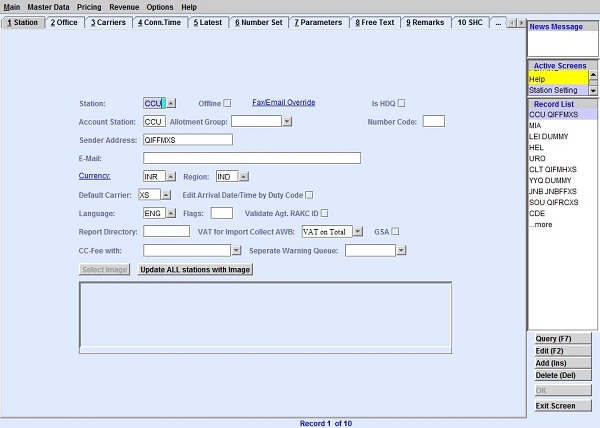
| Field | Description |
|---|---|
| Station | The station code. The station code is taken from the Airport codes set in the
Airport Settings screen. You can look up the available
airport codes from the database by clicking
 , entering search data
in one or more of the fields presented, then clicking Search.
Select the desired code from the search list, then click
Retrieve. The selected code will then populate the
field. , entering search data
in one or more of the fields presented, then clicking Search.
Select the desired code from the search list, then click
Retrieve. The selected code will then populate the
field.Note: Clicking Search when all presented fields are
left blank produces a complete list of all data held.
|
| Offline | By default, stations are online stations. Select the Offline if you are not operating directly in that station but you are selling space out of that station. |
| Fax/Email Override | Clicking the Fax/Email Override link navigates you to the Station Email/Fax Override screen. |
| Is HDQ | The first station set in the system is marked as HDQ. This is required for
accounting and reporting purposes. Select the Is HDQ check box
if the station is the carrier's headquarters. Note: When the Is
HDQ check box is deselected, the system prompts a warning that an HDQ
station needs to be defined.
|
| Account Station | A station can be linked to one accounting station to allow for centralized accounting. |
| Allotment Group | Allotments can be created for a group of stations if the Allotment Group field is activated in your system. You can activate the Allotment Group field by configuring a group using the Station Allotment Group type in . Existing Groups can be selected from the drop-down list. |
| Number Code | Use this field to give a station a numeric value for interface purposes. |
| Sender Address | The sender address used to send SITA messages. When left blank, the application
uses the default address set in the program.ini file: [sita] defSenderAddress=aaaaaaa The the program.ini file is configured by CHAMP Cargosystems. |
| Enter the email address of the station that is going to be used to send messages. | |
| Currency | The three-letter International Standards Organization (ISO) currency code used by
default in this station. This code is used for accounting and statistical purposes.
You can look up the available currency codes from the database by clicking
By clicking the
hyperlink, the system navigates you to the Currencies
screen., entering search data
in one or more of the fields presented, then clicking Search.
Select the desired code from the search list, then click
Retrieve. The selected code will then populate the
field.Note: Clicking Search when all presented fields are
left blank produces a complete list of all data held.
|
| Region | The region where the station is assigned. Enter the region code as defined in the
Combo Codes screen. You can look up the available region
codes from the database by clicking
, entering search data in one or more of the fields
presented, then clicking Search. Select the desired code from
the search list, then click Retrieve. The selected code will
then populate the field.Note: Clicking Search when all
presented fields are left blank produces a complete list of all data held.
|
| Default Carrier | The default carrier for this station. You can look up the available carrier codes
from the database by clicking , entering search data in one or more of the fields
presented, then clicking Search. Select the desired code from
the search list, then click Retrieve. The selected code will
then populate the field. Note: Clicking Search when all
presented fields are left blank produces a complete list of all data held.
|
| Edit Arrival Date/Time by Duty Code | When selected, the access rights for editing the Arrival Date/Time is restricted
to users with the following duty code:
_EDIT_ARR_DATES. Note: This is applicable to the Handling
Module only.
|
| Language | Enter the language code of the language used for certain documents in this
station. You can look up the available language codes from the database by clicking
, entering search
data in one or more of the fields presented, then clicking
Search. Select the desired code from the search list, then
click Retrieve. The selected code will then populate the
field.Note: Clicking Search when all presented fields are
left blank produces a complete list of all data held.
|
| Flags | The Flags field is used to indicate a variation in processing customer-specific requirements. |
| Validate Agt. RAKC ID | When selected, the system validates according to the Regulated Agent and Known
Consignor (RAKC) database. Note: This is applicable to the Handling Module
only.
|
| Report Directory | The report directory. You can enter multiple report directories separated by a
semicolon. The system has a specific path for default reports. For example, for a
report at station Frankfurt, the path can be
/custom/resources/reports/FRA. If the report is not found in
the user directory, the system locates it in the standard directory of Cargospot.
In order to have a specific report accessible for several stations, new directories can be created between the USER and STATION directories. The system includes the directories entered in the Report Directory field (separated by a semicolon) to find the matching report. For example: DE;EU. |
| VAT for Import Collect AWB | If applicable, select the appropriate VAT for Import Collect AWB option from the
drop-down list. For shipments flown within the European Union, the applicable VAT
is on the total collect amount. For Non-EU shipments, normally no VAT applies. This
field allows to change this standard way of work for such records in the following
modes:
|
| GSA | Select the General Sales Agent (GSA) check box if the station is going to be managed by a GSA. |
| CC-Fee with | IATA defines the Charges Collection Fee applicable on collect weight and valuation charges, which is the default calculation when this field is left blank. You can select other options from the drop-down list. |
| Separate Warning Queue | The warning list is created by the accounting station. If you want the station to create the warning list separately, you can select which warning lists to create from the drop-down list. |
| Exclude Dest Revenue From Due Carrier |
When selected, Destination Revenue amount is excluded from Due Carrier amount. This
is reflected in the ACC tab of the Full
AWB screen.
Note: This is not applicable to the Handling Module and can
only be set for HDQ stations.
|
| Select Image | Click Select Image to upload the station logo image file
from your computer. Note: To remove or update the image, Click Edit
(F2) and then right-click on the image. The image quality is dependent
on the size and the format used.
|
| Update ALL stations with Image | Clicking Update ALL stations with Image applies the uploaded image to all stations. |